Format A Seagate External Hard Drive For Mac
I get this question a lot – I have an external hard drive that is NTFS formatted (Windows format), and I want to reformat it for my Mac (HFS). How do I do that? And you know what? It’s not nearly as easy as it should be! There is one trick to it that is not intuitive. So how DO you do it?
First Plug the drive in to your Mac. Then open the Disk Utility that is located in the Utilities folder of your Applications folder. You will see your internal drive in your Mac, as well as any other storage devices that are connected. For this exercise, it is best to DISCONNECT any and all external storage devices, so you only have the one that you wish to format connected. That way you will protect yourself from inadvertently re-formatting the wrong drive. You must still be careful in your selection of which drive to format, as you certainly don’t want to format one of your internal drives. When you see the drives listed down the right hand side of the Disk Utilities window, you will see at least two entries for each physical hard drive.
The first is the physical drive itself. What appear underneath the physical drive are the individual partitions. Most drives are formatted into a single partition, so you will normally see only one entry underneath a physical drive entry. But that is not always the case, so don’t be surprised, or think there is something wrong, if you see more than one entry under a physical drive. For the purpose of reformatting, you need to start by selecting the PHYSICAL drive that you wish to reformat.
In my example here (shown in the pictures here), I will be reformatting the drive shown as ‘298.1 GB Seagate FreAge.’. You can see at the bottom of the first image that this drive is formatted as Windows NT File System (NTFS). We want it to be Mac HFS formatted.
Once you have selected the PHYSICAL drive, then click on the Partition tab at the top of the window. You will then need to click on the down arrow under the heading ‘Volume Scheme’ to indicate how many partitions you wish this newly formatted drive to have. Again, the standard is one, and that is what is shown here in the images. On a Mac, they system will automatically try to format any partition to Mac OS Extended (Journaled). You will see this indicated on the right hand side of the image, labeled ‘Format’. This can be changed if desired, but for this exercise this is exactly the format we want.
Now for the tricky part. When you start with a drive that has been formatted for a Windows system, there is another part that must be changed, and that can be found by clicking on the Options button located underneath the Partitions window. (Each partition can be named separately). When you click on that Options button, you will see the screen shown here. Notice that this screen defaults to Master Boot Record – this is the existing Windows NTFS format that is on the drive. And this must be changed in order to successfully format this drive for a Mac. There are two other options here – GUID Partition Table and Apple Partition Table.
There are good descriptions here of which to use for what specific Mac product you wish to optimize this drive for. For most new formats, you will want to choose the top selection – GUID Partition Table. Once you select this, click the OK button, and you are now ready to actually partition and format your drive. After you hit Apply on the Partition Scheme window, you are returned to the prior window showing your devices. You might now want to change the name of the partition that you are about to create.
Under the heading ‘Volume Information’ in the upper right, simply type in the name you would like to use in the Name field (it defaults to ‘Untitled-1’). There are some rules about naming, and the system will inform you as you enter the name. From here, click on Apply and the system will partition and format your drive for use with your Mac.
When you hit the Apply button, there will be one more screen for you to confirm that you indeed want to partition and format this drive, as it will remove any and all data that is on that drive. Please be sure you are formatting the right drive! That’s really all there is to it.
That one trick – the Options screen – is what usually catches people up when trying to change a drive from a Windows format to a Mac format. Happy formatting! Ian, Great question. Yes, you could indeed partition your new FreeAgent Go to have both an NTFS partition AND an HRS partition. This is not a typical solution, but it can be done.
I would recommend you create the partitions on the Mac, and set the one that you will eventually want as NTFS as FAT (so you can then reformat that on your PC). Please be aware though – your PC will never be able to see the HFS partition. The Mac will be able to see and read from the NTFS partition, but not write to it. I hope this helps! Hi there, I have and had Windows based PCs and laptops since. Now I just had enough and wish to change to Mac. Another four basketballers for mac.
I wish it would be as easy to just buy a new machine and done but I want my TB worth of photos and other file to be transfered safely. I have purchased a Freagent Go USB 2.0 and been told that Mac will see this even though its been formated to NTFS. I had my doubts but anyway I have it now and wish to transfer data. Obviously the above mentioned re-formating won’t help as it would erase all my datad from the drive, but can any1 tell me, what would be the best solution, without writing 100s of DVDs or aven Blu-Rays if that would be an option at all. Hi Jon, I recently bought a 320GB Seagate free agent, which I bought specifically to work on my PC laptop and Mac. The sales assistant assured me that it worked for both!
Install Seagate External Hard Drive
While at uni I use a Mac and it crashed!making all my files read only. A friend re formatted on his Mac book pro, (big mistake) as I am now missing the NTFS formatting which I’m guessing I need to work on my PC laptop. I read that if I use over 4GB on the free agent using a Mac that it’s likly to crash!so now I can use if for my mac, but can’t sync files from my PC laptop. Can you help me show the reverse of this article, (need a NTFS partition)?
Thank you: ). I’ll add my voice to the chorus of thanks! I bought one drive, tried to format/erase/initialize or just use the thing, and managed to mess up the directory (I think) to the point where it wouldn’t show up on a Windows computer either.
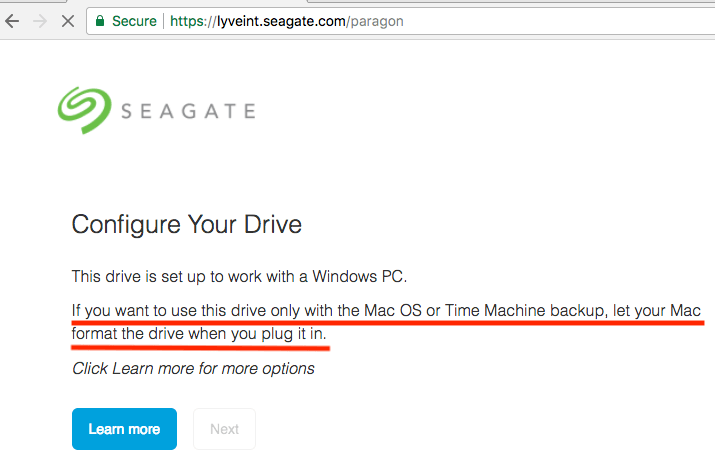
I took it back to the store (hey, Fry’s – that drive might be OK after all) and got another one – since it behaved the same as the first, I made sure not to do anything to it until I tried your method. It’s now formatted, and happily swallowing all the backup data I’m dumping on it! Thanks again! On the back of the Seagate Expansion you will find a power input and a USB 3.0 jack. Using this hard drive is very simple on Windows operating systems – You merely plug in the power cord and USB 3.0 lead and off you go, this is thanks to the fact that the hard drive comes pre-setup to use for Windows users. If you want to use the Seagate Expansion on a mac, you only need to reformat it using the Disk Utility in your Mac operating system and voila.
If you don’t know how to do this, take a look at the following Seagate page and follow their easy to follow steps:.
'My 320 GB Seagate external hard drive is detected but not showing up in my Computer. What should I do? In Device Manager, it gets detected and in disk management, it shows up as 'unallocated'.
Is there any way to fix the issue? If I initialize it, will I lose all the data on the drive? I'm using Windows 10.' Three steps to fix Seagate external hard drive not showing up in Windows 10 Sometimes, when you plugin your Seagate external hard drive to PC, it cannot be recognized by your PC. As a result, the disk and the folders & files on it then become inaccessible. Actually, there are not the few have experienced such Seagate in Computer issue in Windows 10.
Next, we will show you how to fix the issue without losing data. Make Seagate external hard drive show up in disk management The first thing you need to do is to check if it is showing up in disk management. If yes, you can skip to the next step. And if not, you should first update the disk driver to make the Seagate external hard drive recognized by Windows and show up in disk management. Open Computer and choose System Properties. In the taskbar on the left, click device manager and next to USB controller click '+ (plus)'.Then you'll see a yellow exclamation mark. Right click and choose update driver software, then click automatically search for driver software online.
Recover data from the Seagate external hard drive which is not showing up in Computer When you see the Seagate external hard drive listed in the Disk Management window, you can try EaseUS to retrieve your data. It works well on even when the disk is not showing up in your Computer. By going through three short stages, you can easily find lost data on a Seagate external hard drive. Scan the Seagate drive - Display files in categories - Check results and recover Follow the detailed guide: Step 1. Under the 'External Devices', you should see the Seagate external hard drive showing up after it's correctly connected to your computer.
Select the drive and click the Scan button.